

- This LED lighting kit lets you choose the perfect light for your photos or videos.
- With RGB backlighting, the lamp features multi-color lights in addition to standard illumination,
- allowing you to capture stunning photos and beautiful videos.
- Adjustable color temperature and a convenient cable length
- and a smartphone holder with an adjustable arm and ball joint for perfect positioning.
-18%


Exclusive Products, Original Products, Stylus & Pens

Huawei M-Pen 2
Availability:
4 in stock
incase of installments will the official price
- Support Huawei MatePad Pro But need to be upgraded to EMUI 11
- Huawei HiPair Plug, Pair, and Charge
- it can be paired instantly and charged by your mobile device
- 11 ms Low Latency, 4096 Pressure Sensitivity & Tilt Sensitivity
- Multi-device Connection, up to 4 devices and switch between them seamlessly
- With the multi-function button, you can have full control at your fingertips
- just plug your Huawei M-Pen 2 into the USB Type-C Port of your mobile device
2,499 EGP 3,085 EGP
4 in stock
Huawei M-Pen 2
Overview
M-Pen 2
HUAWEI HiPair | Multi-device Connection | Multi-function Button


HUAWEI HiPair
Plug, Pair and Charge
With HUAWEI HiPair Technology, just plug your HUAWEI M-Pen 2 into the USB Type-C Port of your mobile device, and it can be paired instantly and charged by your mobile device

Multi-device Connection & Seamless Switchover
Connect your HUAWEI M-Pen 2 with up to 4 devices and switch between them seamlessly. Write naturally, without interruption


Multi-function Button
With the multi-function button, you can have full control at your fingertips

Create Your Own Always On Display
Create unique Always On Display with your own doodles

11 ms Low Latency4, 4096 Pressure
Sensitivity & Tilt Sensitivity
The HUAWEI M-Pen 2 has an almost imperceptible lag that is as low as 11.2 ms, and also has 4096 pressure sensitivity and tilt sensitivity. It is designed to give you natural writing experience just like a real pen

Fast Charging & Long Battery Life

Beautifully Crafted for a Comfortable Grip
With lightweight design and integrated matte non-slip body, the HUAWEI M-Pen 2 is beautifully crafted to give you a comfortable grip

Features :
- Huawei HiPair Plug, Pair, and Charge
- Compatible with Huawei Mate 40 series, MatePad Pro
- 11 ms Low Latency, 4096 Pressure Sensitivity & Tilt Sensitivity
- Multi-device Connection, up to 4 devices and switch between them seamlessly
- With the multi-function button, you can have full control at your fingertips
- just plug your Huawei M-Pen 2 into the USB Type-C Port of your mobile device
| Function | Mate 40 series | Mate 30 series | MatePad Pro 10.8 | MatePad10.8 |
| (EMUI 11.0 or later) | (EMUI 11.0.0.150/HarmonyOS 2.0 or later) | (EMUI 11.0.0.145 Patch 01/HarmonyOS 2.0 or later) | ||
| USB-C charging | Yes | Yes | Yes | Yes |
| USB-C Bluetooth pairing | Yes | Yes | Yes | Yes |
| Basic writing | Yes | Yes | Yes | Yes |
| Multi-device connections at the same time | Yes | No | Yes | No |
| Screen wakeup | Yes | Yes | Yes | Yes |
| Quick note taking: Tap the stylus against the screen when the screen is off. | Yes | Yes | Yes | Yes |
| Displaying the Notepad: Press and hold the button on the stylus and tap the stylus against the screen | Yes | Yes | Yes | Yes |
| Taking a partial screenshot: Press and hold the button on the stylus and then draw a circle | Yes | Yes | / | / |
| Taking a scrollshot: Press and hold the button on the stylus and then draw an “S” | Yes | Yes | / | / |
| Brands | |
|---|---|
| Color | |
| Devices Filters | Huawei Mate 40, Huawei Mate 40 Pro, Huawei Matepad 10.8, Huawei MatePad Pro 10.8 (2019) |
| WEIGHT | approx. 17 g |
| Size | Length : 143.87 mm
Diameter : 8.9 mm |
| Battery capacity | 82 mAh |
| Applicable product | HUAWEI Mate 40 series phone |
| Connectivity | Bluetooth
Bluetooth 5.0 Pairing Once inserted into the phone interface, the stylus will charge and complete Bluetooth pairing |
| Packaging list | Stylus pen x 1
Replacement tips x 1 Quick Start Guide x 1 Security card x 1 |
Based on 0 reviews
Only logged in customers who have purchased this product may leave a review.
Compatible products
-
Covers and Cases, KeyBoards
M7108C Smart Bluetooth Keyboard Leather Case With Touchpad For Huawei MatePad Pro
-23%Quick View Covers and Cases, KeyBoards
M7108C Smart Bluetooth Keyboard Leather Case With Touchpad For Huawei MatePad Pro
incase of installments will the official price
- Follow this step to Rearrange Letters
- You Must Connect Your Device With Keyboards Connection
- Open Settings >> General >> Keyboards >> Hardware Keyboards >> Select Language Use >> PC
- With Arabic Letters
- Design with touchpad
- Pen slot function, easy to use
- Easy to insert and remove
- Separable design of keyboard and holster
- Not only a protective case, but also a built-in Bluetooth keyboard, more powerful
- Bluetooth 3.0 chip, faster speed, lower power consumption, Bluetooth is more stable
- The tablet fits snugly into the case and provide sufficient protections for daily use
- Giving you amazing versatility. It allows you to prop the tablet up for watching videos
- Precise cutting, easy access to all buttons and ports, providing you with smooth operation
SKU: n/a -
Covers and Cases, KeyBoards
M7108T Smart Bluetooth Keyboard Leather Case With Touchpad and Light For Huawei MatePad Pro
-23%Quick View Covers and Cases, KeyBoards
M7108T Smart Bluetooth Keyboard Leather Case With Touchpad and Light For Huawei MatePad Pro
incase of installments will the official price
- Does not include pen
- Follow this step to Rearrange Letters
- You Must Connect Your Device With Keyboards Connection
- Open Settings >> General >> Keyboards >> Hardware Keyboards >> Select Language Use >> PC
- With Arabic Letters
- Design with touchpad
- Keyboard with 7-color backlight
- Pen slot function, easy to use
- Easy to insert and remove
- Separable design of keyboard and holster
- Not only a protective case, but also a built-in Bluetooth keyboard, more powerful
- Bluetooth 3.0 chip, faster speed, lower power consumption, Bluetooth is more stable
- The tablet fits snugly into the case and provide sufficient protections for daily use
- Giving you amazing versatility. It allows you to prop the tablet up for watching videos
- Precise cutting, easy access to all buttons and ports, providing you with smooth operation
SKU: n/a -
Exclusive Products, Screen Protectors
UZIEN Rock Space Flexible TPU Proof Film Screen Protector Size L (7-11 inch)
-20%Quick View Exclusive Products, Screen Protectors
UZIEN Rock Space Flexible TPU Proof Film Screen Protector Size L (7-11 inch)
- Available in Our Stores Only For Contact us Click here https://imediastores.com/contact/
- For any other device not in website please visit our stores .
- rock space 100% Brand New and High Quality.
- Myopia Pievention .
- Full Cover .
- Anti shock Antiimpact soft and flexible TPU material enables to cover the whole screen and has strong impact resistance.
- Smooth Touch.
- Scratches Auto Repairing.
SKU: n/a
Popular essentials for your phone
-
Mounts & HoldersNew
BAFANG BFT-02C Universal Aluminum Phone Video Rig Cage Stabilizer
-12%Quick View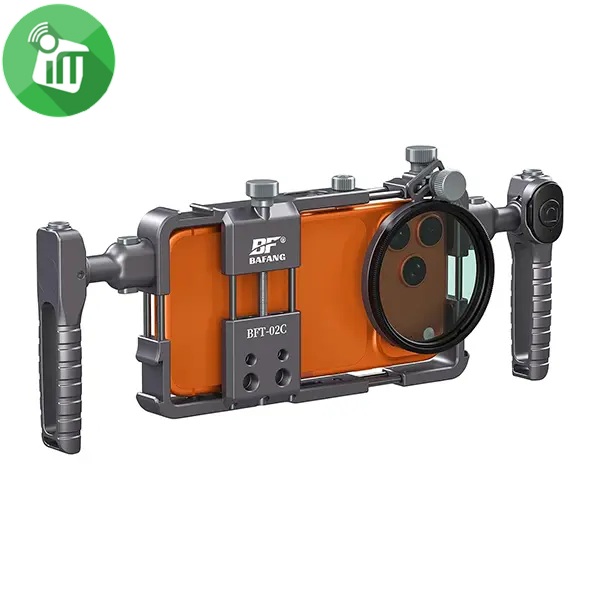 Mounts & Holders
BAFANG BFT-02C Universal Aluminum Phone Video Rig Cage Stabilizer
incase of installments will the official price
- Product Type : Universal Phone Video Rig / Cage Stabilizer
- Compatibility : Most smartphones
- Mounting Options : Cold shoe mounts & accessory slots
- Handle Type : Dual side handles
- Material : Durable ABS / Plastic
- Use Case : Video recording, vlogging, live streaming
- Universal Smartphone Compatibility Fits most smartphones securely.
- Dual Ergonomic Handles Provides stable, shake-free video recording.
- Professional Cage Design Multiple mounting points for accessories.
- Cold Shoe Mounts Attach microphone, LED light, or other accessories easily.
- Lightweight & Durable Build Strong construction for long-term use.
SKU: 60124982 -
Flash Light, Mounts & Holders, Top SellerNew
MJ36 36cm RGB LED Ring Light with Phone Clip (14-Inch)
-11%Quick View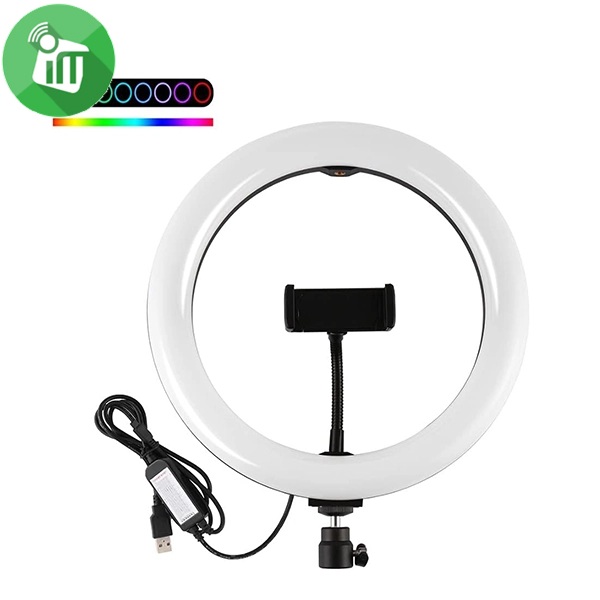 Flash Light, Mounts & Holders, Top Seller
MJ36 36cm RGB LED Ring Light with Phone Clip (14-Inch)
SKU: 60125033 -
Flash Light, Mounts & Holders, Top SellerNew
M22S 56cm Digital RGB LED Ring Light with 3 Phone Clip Remote Control (22-Inch)
-12%Quick View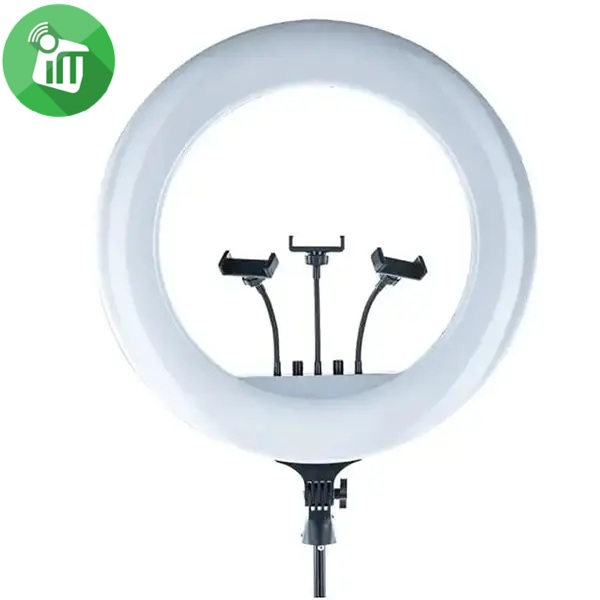 Flash Light, Mounts & Holders, Top Seller
M22S 56cm Digital RGB LED Ring Light with 3 Phone Clip Remote Control (22-Inch)
- Ring diameter: 56 cm
- Power :100 W J W
- Lamp type: LED lamps
- Color temperature: 3000 ~ 8500
- The ring light uses high-quality lens beads to diffuse light evenly, minimizing shadows and hotspots.
- With a color temperature range of 3000-6000K and smooth dimming
- The manual adjustment dial of the big ring light allows for fine-tuning of brightness and color temperature,
- The display screen provides real-time indications of brightness and color settings
- The 180° rotating lamp head allows users to easily adjust the light direction,
- The 360° rotatable flexible phone holders accommodates
SKU: 60125088 -
Flash Light, Mounts & Holders, Top SellerNew
MJ56 56cm RGB LED Ring Light with 3 Phone Clip Remote Control (22-Inch)
-12%Quick View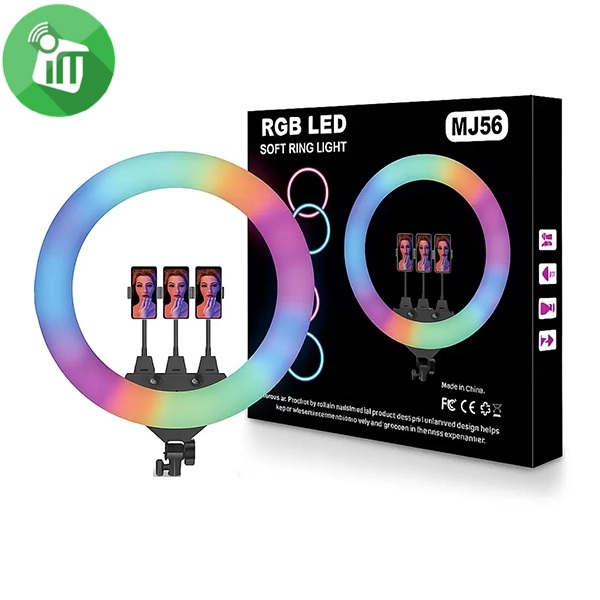 Flash Light, Mounts & Holders, Top Seller
MJ56 56cm RGB LED Ring Light with 3 Phone Clip Remote Control (22-Inch)
- Power: 50W
- Material :ABS
- color temperature :3000K-6000K
- switch between vibrant colors or adjust white light from warm to cool to perfectly match your style.
- The smooth brightness control and dynamic effects like flash
- The sturdy tripod stand extends up to 210 cm and comes with 3 phone holders
- giving you multiple shooting angles and 360° rotation.
- Control your setup effortlessly with the touch panel and wireless remote
SKU: 60125071
There are no reviews yet.